
The Pulse review scheduler is a power part of the Pulse tool. Allowing you to plan ahead and receive notifications from a week before the due date of the review, you can stay on top of all of your reviews with ease. Below, we have a step-by-step guide on how to use this simple, helpful part of the tool.
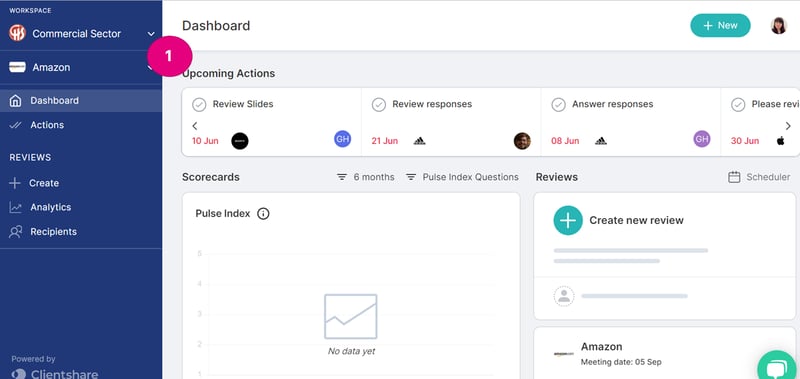
Navigate to the correct workplace and client
1. Before you start, make sure you are on the correct workspace and have the right client.
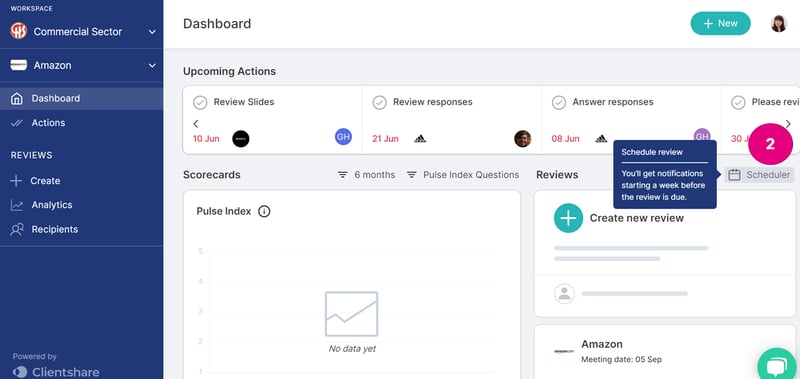
Select “Scheduler”
2. On the right-hand side of the screen, select the button that says “Scheduler” with a calendar icon.
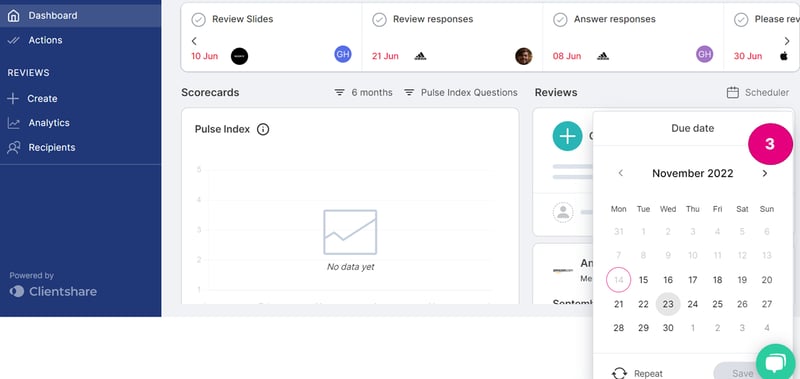
Choose the date for your review
3. Once you have clicked the “Scheduler” button, a calendar will appear. Click the date of your review.
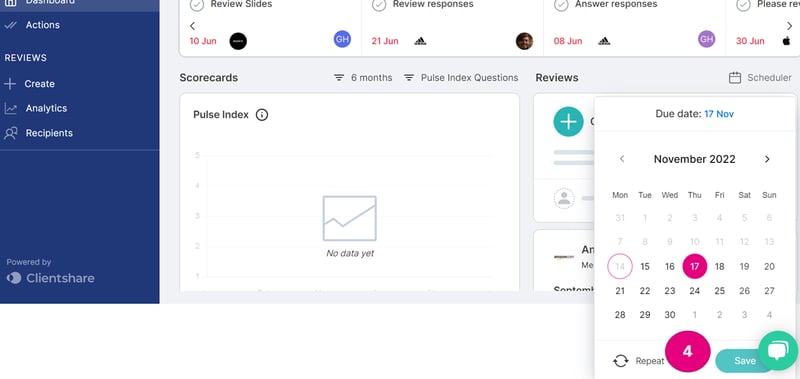
Save the date
4. When you have selected the date you want, the “save” button will turn green. Click the “save” button.
You can also select “repeat” to make this a recurring event. Whether this is monthly or quarterly, you’ll stay ahead of the game for months to come!
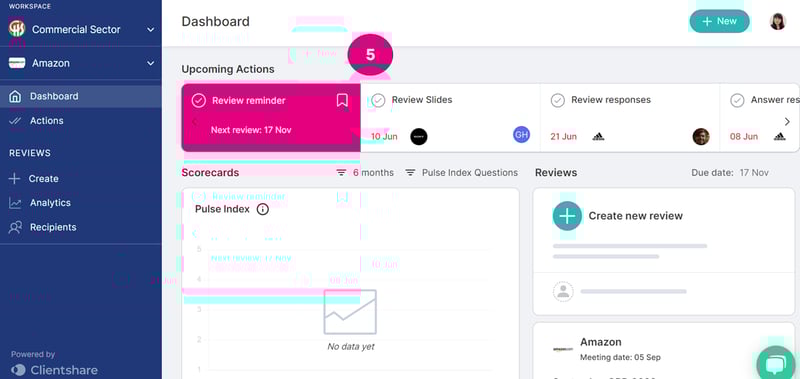
Once you have clicked “save”, your scheduled review will appear (5) at the top of your client dashboard.
If you require any extra help with reviews or would like to know more about the Pulse tool, please contact our Customer Success team. Equally, you will find a great deal of useful content on the Pulse Knowledge Centre.
Read more:

What is NPS and why is it your most powerful metric?

How to create and share a review with Clientshare Pulse

What are Pulse Index Questions and how can you customise them to fit your organisation's needs?
Not yet a Clientshare customer?
Learn more about Clientshare and our software solutions for service providers here or request a demo.