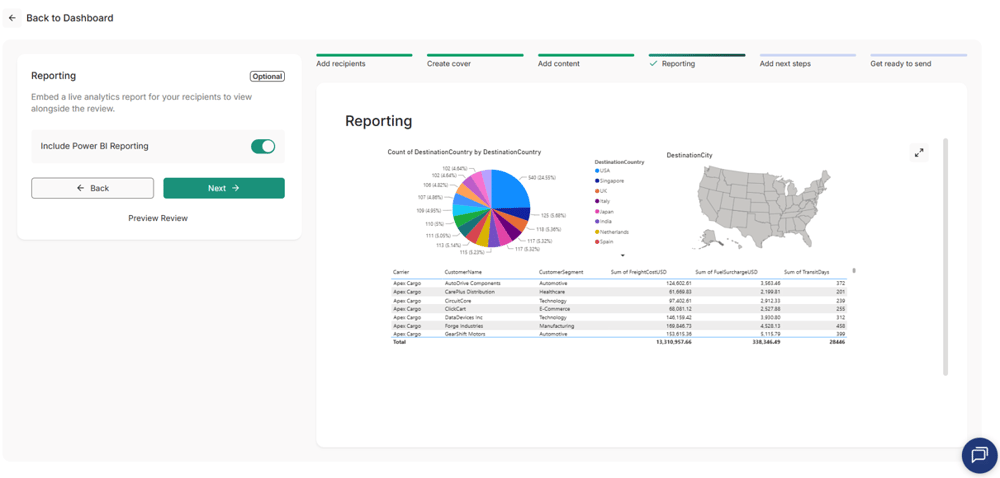
Embedded Reporting allows you to display live Power BI dashboards within your Clientshare reviews, giving clients access to up-to-date performance data alongside your review content without leaving the review experience.
Before you begin
Before Embedded Reporting can be enabled, your organisation will need someone with Microsoft Azure administrator access to create the required credentials and grant Clientshare permission to access your Power BI reports.
The following credentials are required:
- Client ID
- Client Secret
- Tenant ID
For detailed guidance on completing this step, please refer to the Customer Azure Setup Guide
Step-by-step guidance on connecting Clientshare to Power BI:
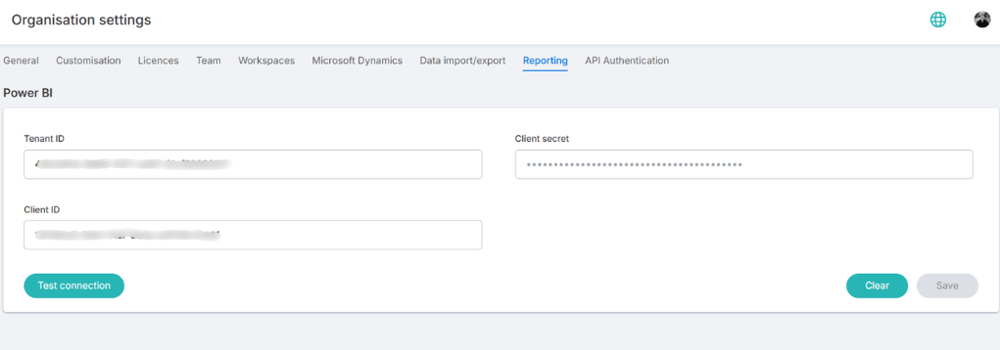
- Go to Organisation Settings (Owner access required).
- Select the Reporting tab.
- Add the 3 credentials and test the connection to ensure it is working properly. Select Test connection to verify the credentials.
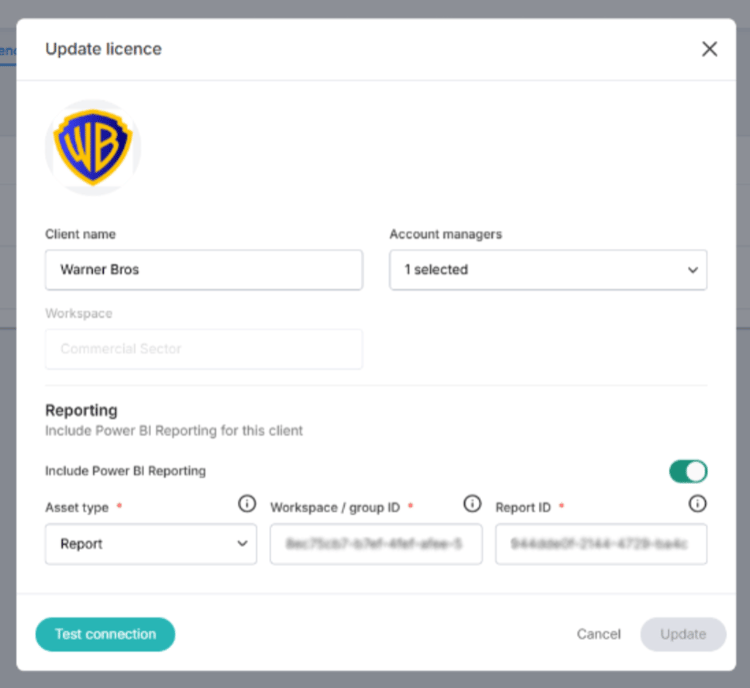
- Select the Licences tab from the settings tabs.
- Locate the client account you want to enable reporting for and click the pencil icon.
- Select the toggle for ‘Include Power BI Reporting’ and add the Group ID & Report ID for the Power BI report you want to add to that client. (The Group ID & Report ID can be found in the URL of your Power BI reports).
Useful to know
- Embedded Reporting is enabled individually for each client account.
- Different client accounts can be linked to different Power BI reports.
- Once configured, reports are available whenever a review is created for that client account.
- Any updates made to the Power BI report are reflected automatically when clients view the embedded report, ensuring they always see the latest available data.
Read more:
.png?width=300&height=225&name=support-article-thumbnail%20(8).png)