
Expanding your recipient list helps improve the quality of feedback collected while increasing visibility of the value being delivered across the client organisation. Include stakeholders across different roles and seniority levels — not just regular contacts — to gather broader insights and strengthen relationships.
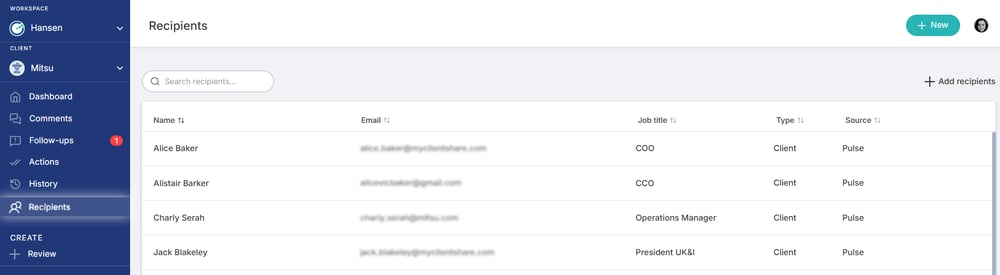
Step 1: Open the Recipients page
From the left-hand menu, select the account you’d like to manage recipients for, then go to the Recipients feature. This page displays all recipients currently added to the account.
Step 2: Add a new recipient
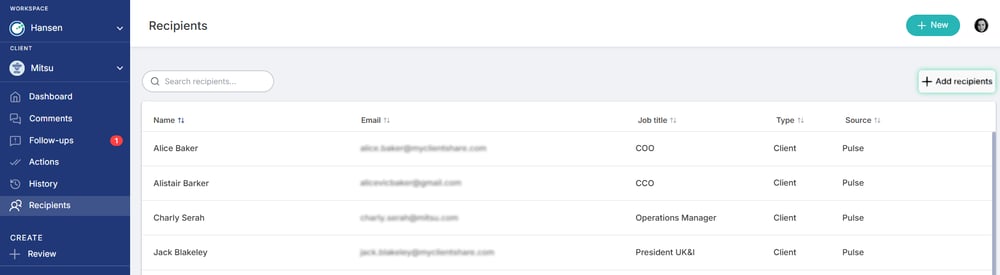
- Select + Add recipient on the right-hand side corner
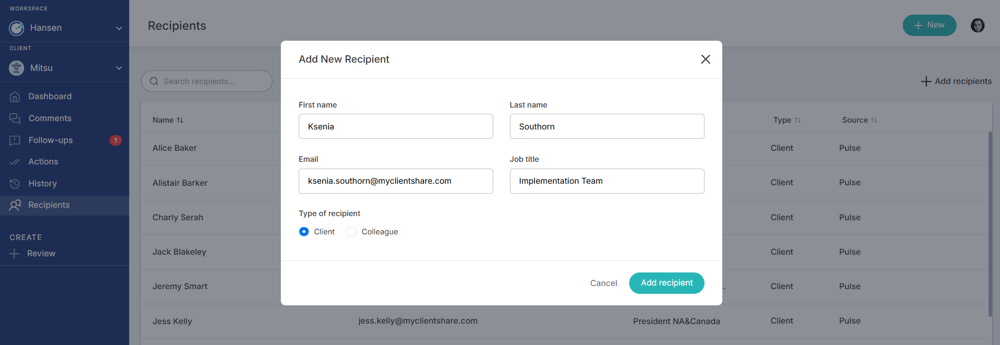
- Enter the recipient’s details: first name, last name, email address and job title.
- Select recipient type:
- Client → can receive reviews and submit feedback
- Colleague → can view reviews, but cannot submit feedback.
- Once completed, click Add recipient.
Managing existing recipients
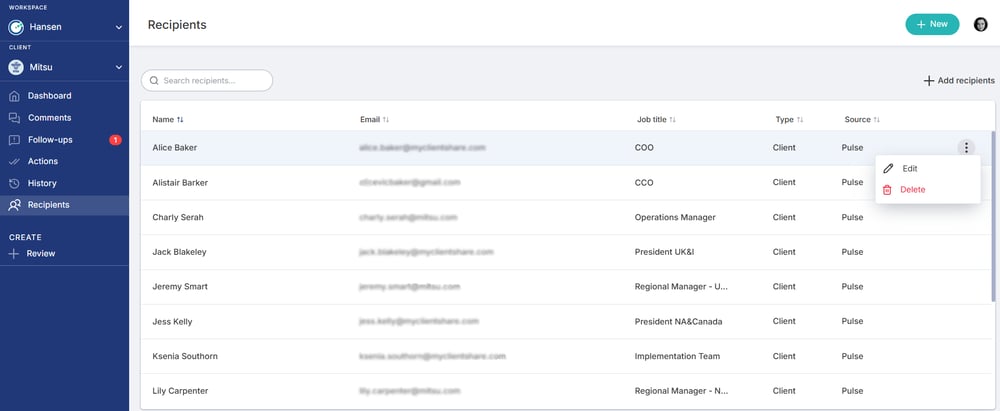
From the Recipients page, you can also:
- Edit recipient information
- Remove recipients who are no longer relevant to the account
Read more:
.png?width=300&height=225&name=support-article-thumbnail%20(23).png)