
This article covers two actions:
- Edit a review
- Delete a review
1. Edit reviews
You may need to edit a review after it has been sent—for example, make changes to the cover page, manage content, update recipients, or add additional next steps.
Step 1: Open the review in edit mode
-
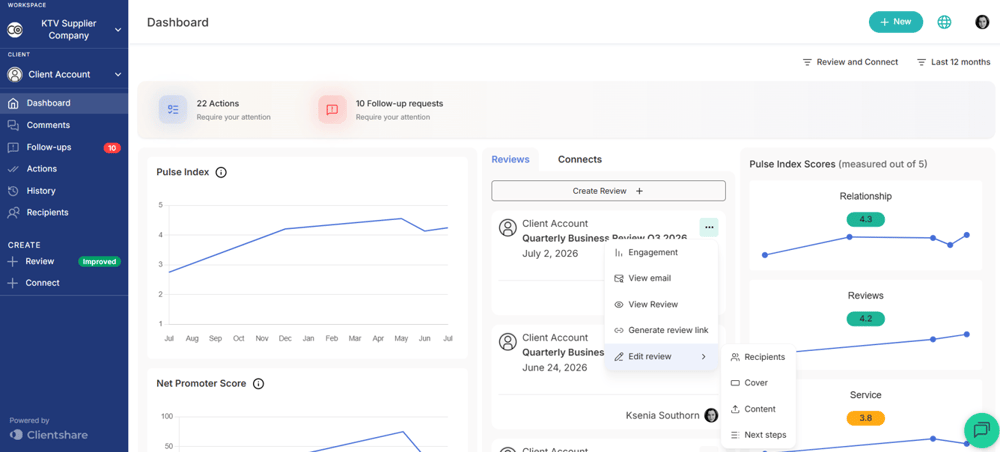
Go to your Account Dashboard and navigate to the review you want to edit.
-
Click the three dots and select Edit review breakdown.
If the review is older, go to History from the left-hand menu on the account page and follow the same steps.
Step 2: Select what you'd like to edit
- Recipients – add, edit or remove review recipients.
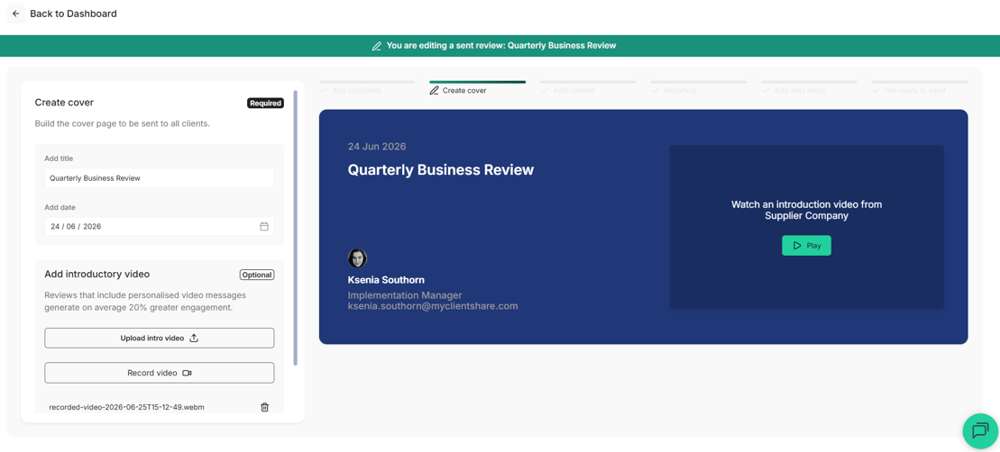
- Cover – update the review title, date and video message.
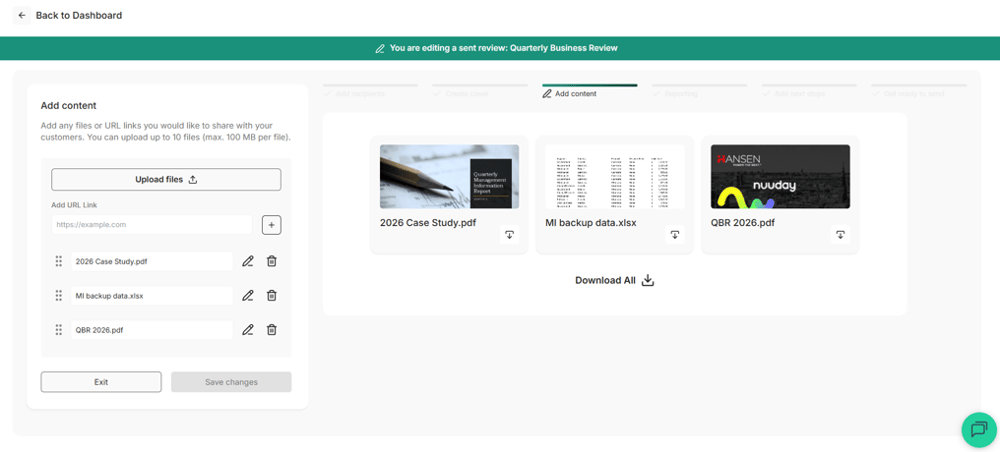
- Content – manage files, links and their display order.
- Next Steps – add additional actions.
2.1 Recipients
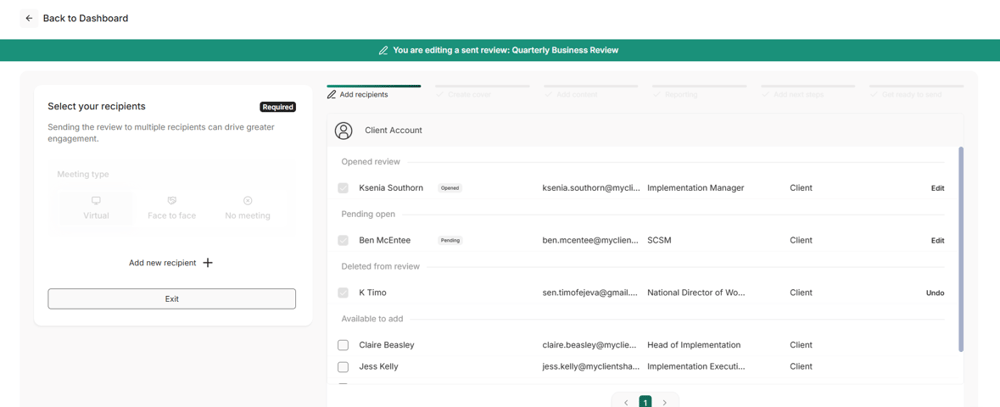
Editing recipients allows you to add, edit or remove recipients from the review.
Current review recipients are displayed in three groups as applicable:
- Opened – recipients who have already accessed the review.
- Pending Open – recipients who have received the review but have not yet opened it.
- Deleted from review – recipients who have been removed from the review.
2.1.1 Adding recipients
There are two ways to add recipients to an existing review.
Option 1: Add recipients from your existing recipient list
Recipients available to add are displayed under Available to add.
To add them:
- Select the recipients you want to include.
- Click Send review to recipients from the pop-up that appears.
- Review the selected recipients and click Confirm & Send.
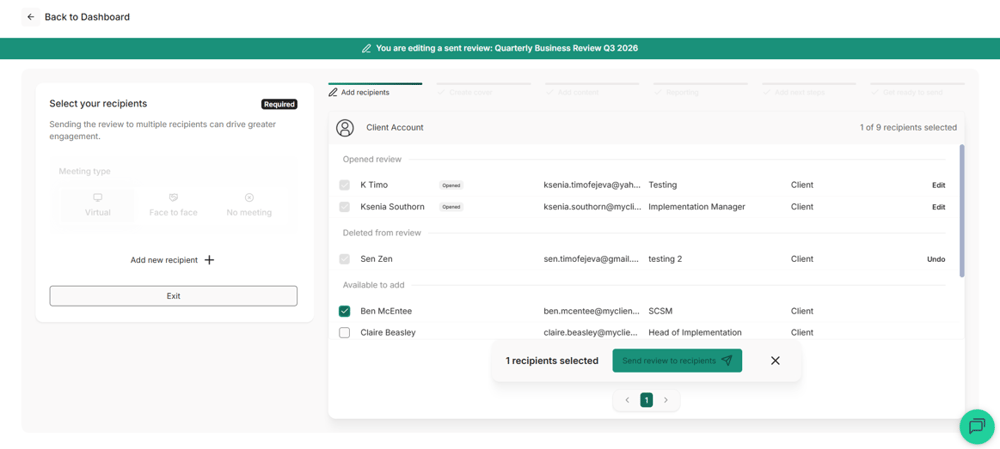
The newly added recipients will appear under Pending Open until they access the review.
Option 2: Add completely new recipients
If the recipient is not already in the account recipient list:
- Select + Add new recipient.
- Enter the recipient's details on the pop-up.
- Click Save & send.
- Review the information and select Confirm & Send.
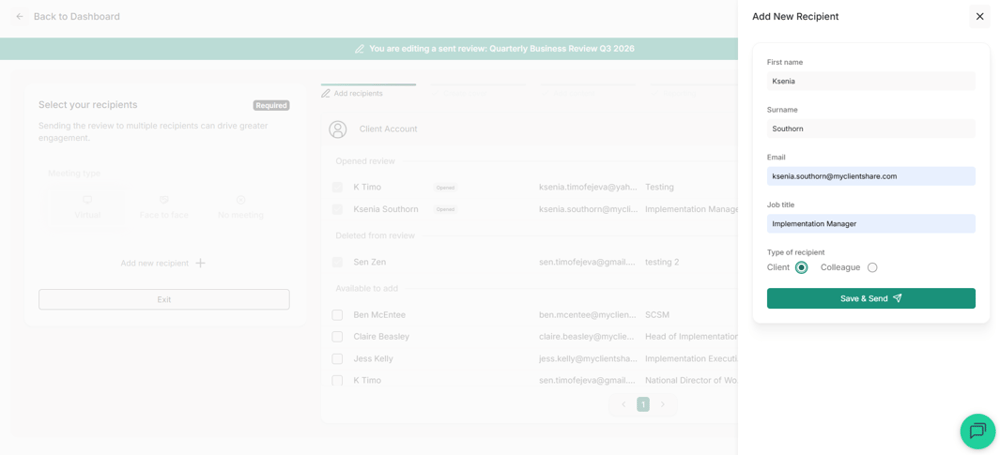
The recipient will be added to both the review and the account recipient list.
2.1.2 Edit recipient details
To update an existing recipient:
- Select Edit next to the relevant recipient.
- Update the required information.
- Click Save changes.
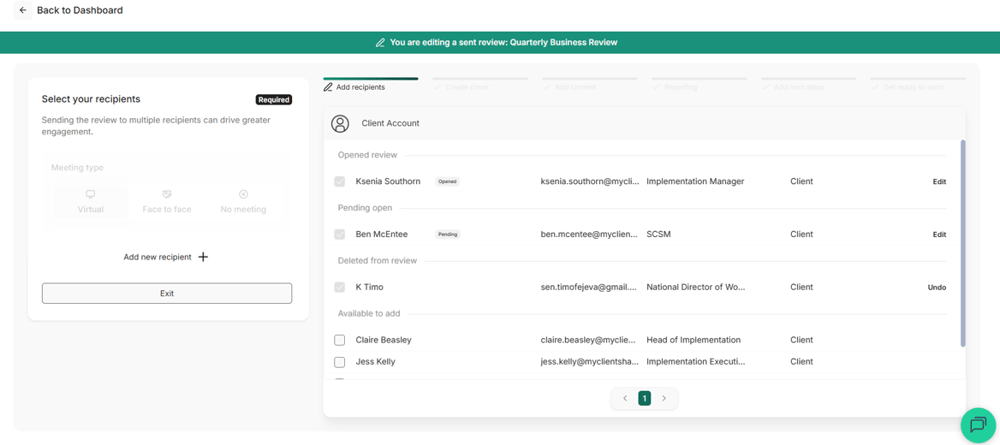
Any changes made will update both the recipient information for this review and the account recipient list, ensuring the updated details are used for future reviews.
2.1.3 Remove a recipient
To remove a recipient from the review:
- Select Edit next to the relevant recipient.
- Click Remove access for user.
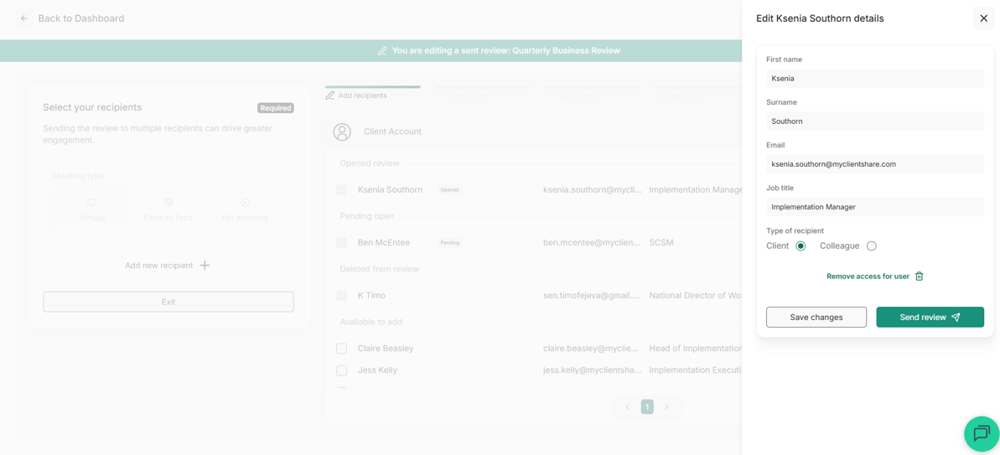
Please note: Removing a recipient only removes their access to the review. Any feedback they have already submitted will remain on the platform. Feedback is only removed if the entire review is deleted.
2.2 Cover
The Cover section allows you to update the basic review information.
You can:
- Edit the review title.
- Change the review date using the calendar icon.
- Add or remove the video message.
All changes are made on the left-hand side, while a live preview is displayed on the right.
Click Save changes once you've finished editing.
2.3 Content
The Content section allows you to manage the files and links included in the review.
You can:
- Add new files using Upload files.
- Add links by entering a URL and selecting the + button.
- Rename or remove existing content using the pencil and bin icons.
- Reorder content by dragging items into the desired order using the six-dot drag handle next to each content item.
All changes are made on the left-hand side, while a live preview is displayed on the right.
Click Save changes once you've finished editing.
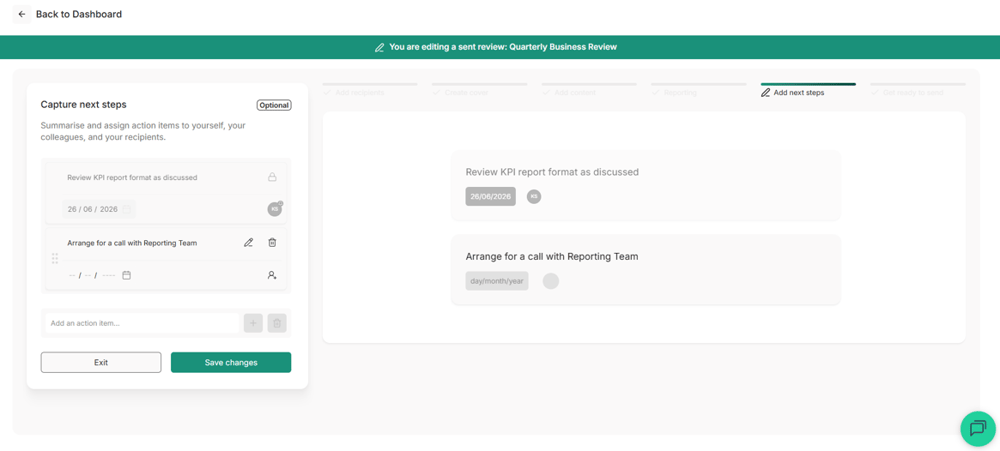
2.4 Next Steps
The Next Steps section allows you to add further actions to the review.
You can:
- Reorder existing actions by dragging them into the desired order using the six-dot drag handle next to each action.
- Add new actions alongside those already included.
- Assign an owner.
- Notify the owner by selecting the bell icon.
- Add a deadline.
To add a new action, use the input field on the left. A live preview will show how it will appear in the review.
For each new action, you can optionally:
Please note: Actions that were included when the review was originally created cannot be edited or removed. Only new actions can be added during the edit process.
Click Save changes once you've finished editing.
2. Delete a review
Deleting a review permanently removes the review, including any feedback and scores. This action cannot be undone.
Important: Only Admin and Owner users can delete reviews. If you do not have the appropriate access, please contact your internal Clientshare administrator or the Clientshare team.
Step 1: Locate the review
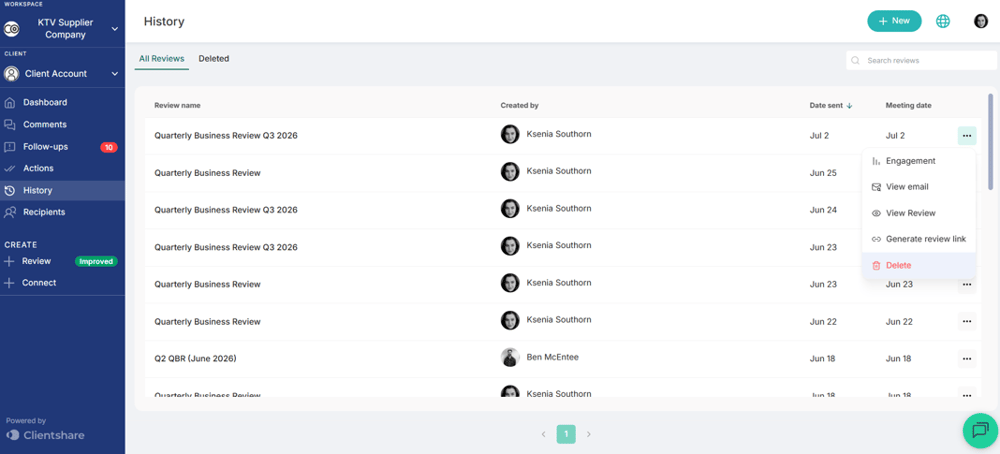
- Go to your Account Dashboard from the left-hand panel.
- Open History from the left-hand menu.
- Locate the review you want to delete.
- Click the three dots next to the review.
- Select Delete.
Step 2: Delete the review
Read more:
.png?width=300&height=225&name=support-article-thumbnail%20(8).png)