This article will cover the following areas of your Profile Settings:
- Profile Details
- Change Password
- Notification Settings
Every user, no matter their permissions, has access to their own Profile & Notification settings.
The ‘Profile’ section can be found by clicking on the icon in the top right corner. Depending on whether the user has added a profile picture, this will either be their initials or their profile picture.
Profile details
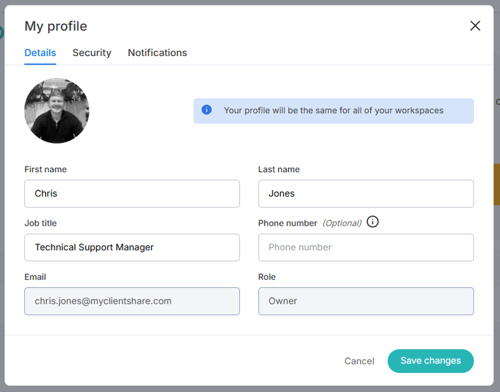
When on the ‘Details’ tab, you will be able to update the following areas of your Clientshare profile:
- First Name
- Last Name
- Job Title
- Phone Number (optional)
- Profile Picture
In order to share a review on Pulse, you must add a profile picture. This preferably needs to be a picture of yourself with even dimensions so that the image does not look squished.
Your email address cannot be changed on your profile settings. If your email address has changed or it is wrong, please contact support@myclientshare.com or ask an administrator to send you an invite to the correct email address. An Admin or Owner on Clientshare are the only users who can edit your role.
Your profile settings will be visible on the cover page of a review you send.
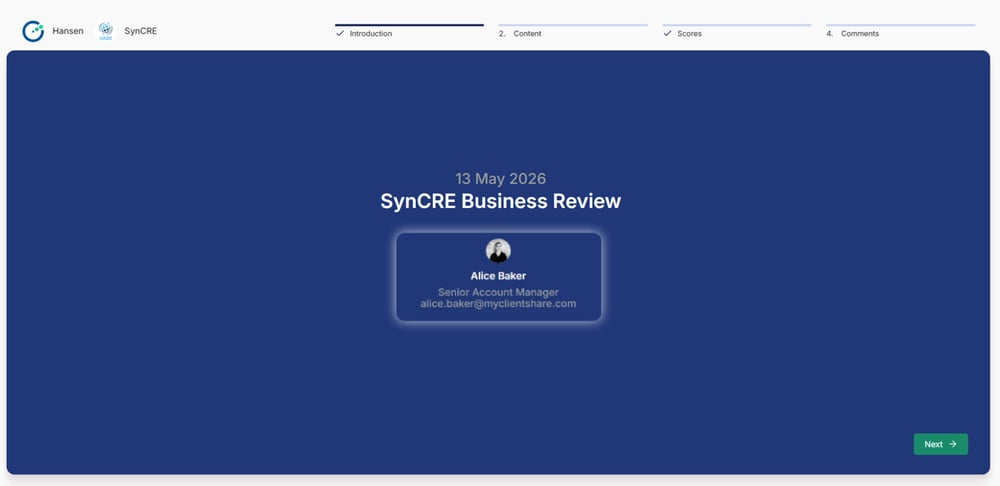
Once you have updated your profile details, make sure you Save Changes by clicking the ‘Save Changes’ button at the bottom of the pop-up.
Profile details
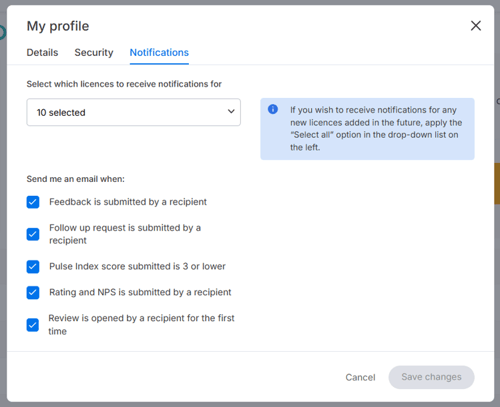
The notifications tab allows you to customise what emails you receive based on your stakeholders engagement. Please note that you will always receive notifications for reviews that have been sent to you where you are a recipient.
The dropdown provides a list of all the accounts that a user has access to.
‘Select All’ enabled:
- You will receive notifications (for the options you have ticked below the dropdown) for all accounts.
- Any newly assigned account will have notifications turned on.
- You will receive notifications (for the options you have ticked below the dropdown) for the accounts you have ticked in the dropdown.
- Any newly assigned account will not be enabled automatically.
‘Select All’ disabled:
- You will receive notifications (for the options you have ticked below the dropdown) for the accounts you have ticked in the dropdown.
- Any newly assigned account will not be enabled automatically.
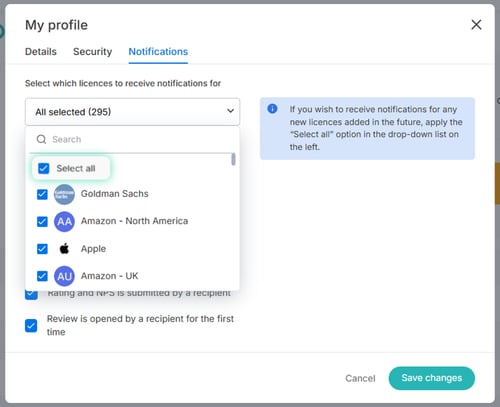
Please note that checking all accounts without clicking ‘Select All’ will not automatically enable notifications for newly assigned accounts.
There is a list of the different types of alerts you can receive based on review engagement for the accounts you have access to. They are:
Feedback is submitted by a recipient
This is generated when a client leaves a feedback comment on a review. Their comment, as well as their name, job title and name of the review is provided on the email notification.
Follow up request is submitted by a recipient
This is generated when a client clicks the toggle button requesting to speak to the Leadership / Management Team. Their name, job title and name of the review will be provided on the email notification.
Pulse Index Score submitted is lower than 3
This is generated when a client provides a score on one of the 4 questions that is a 3 or lower. It will outline which category they scored 3 or lower on, as well as the NPS score they provided. Their name, job title and name of the review will also be provided on the email notification.
Rating and NPS is submitted by a recipient
This is generated when a client provides a score on your review. The average score of the 4 questions, and the NPS score are provided. Their name, job title and name of the review will also be provided on the email notification.
Review is opened by a recipient for the first time
This is generated when a client or colleague opens a review for the first time. The recipients name and name of the review will be provided in the email notification.
Once you have made any changes to your preferences, make sure you select ‘Save Changes’.
Read more:

How to use Pulse Share-to-Many