-
Automated review reminders help ensure reviews are sent on time by prompting account managers when action is needed.
There are two types of reminders:
- Reminders to send the next review
- Reminders to send the first review
1. Set up reminders for the next review
This automation reminds account managers when no review has been sent within a defined timeframe.
Step 1: Locate the automation
Select the workspace from the left-hand panel, then go to Workspace settings
.png?width=1000&height=394&name=How%20to%20set%20up%20automated%20review%20reminders%20for%20account%20managers%20SCREENSHOT%201%20(1).png)
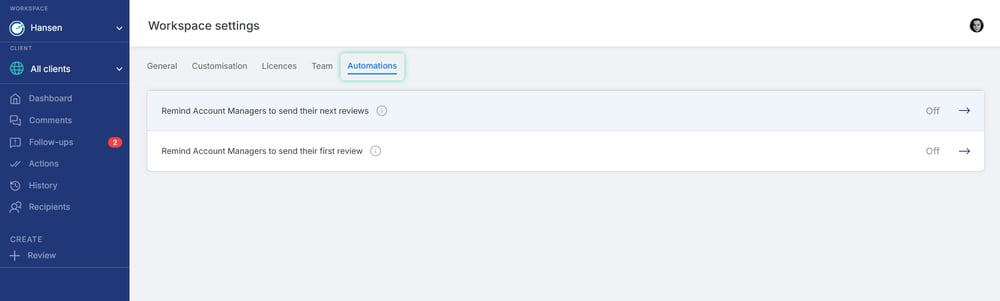
Go to the automations tab -> Select Remind Account Managers to send their next review
Step 2: Configure the automation rule
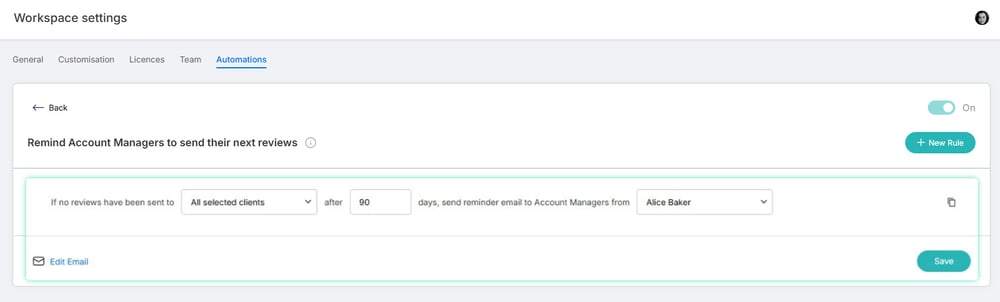
- Select the clients the rule applies to
- Define the number of days since the last review to trigger the automation
- Choose the sender (typically a senior manager)
- (Optional) Click Edit email to update the messaging
- Click Save to activate the rule
Tip:
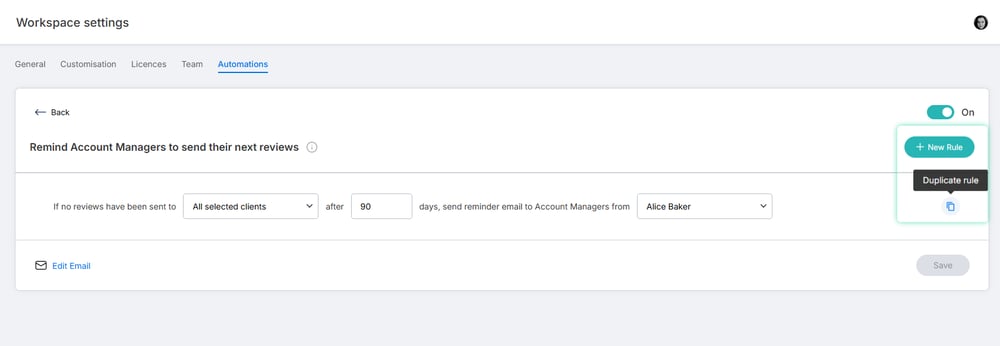
You can create multiple rules/ copy existing rules using + New Rule/ “copy” icon for different clients, timeframes, or senders. However, email messaging cannot be customised per each rule - it will remain the same across all rules within this automation.
2. Set up reminders for the first review
This automation reminds account managers to send their first review after being invited to Clientshare (where their assigned accounts have not yet launched).
Step 1: Locate the automation
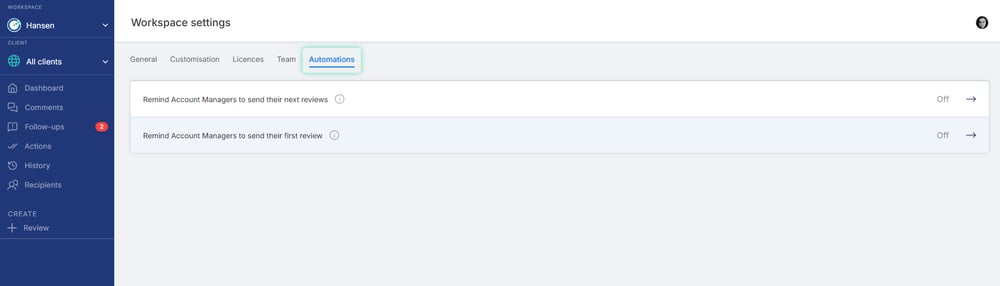
- Select the workspace from the left-hand panel, then go to Workspace settings
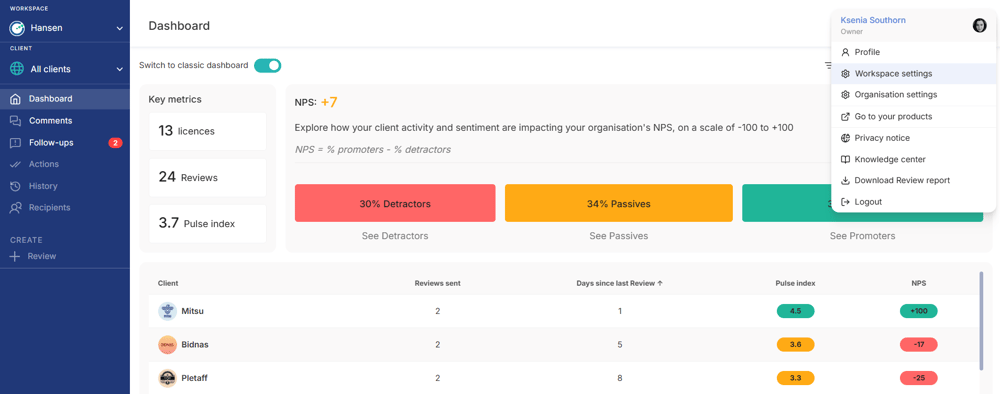
Go to the automations tab -> Select Remind Account Managers to send their first review
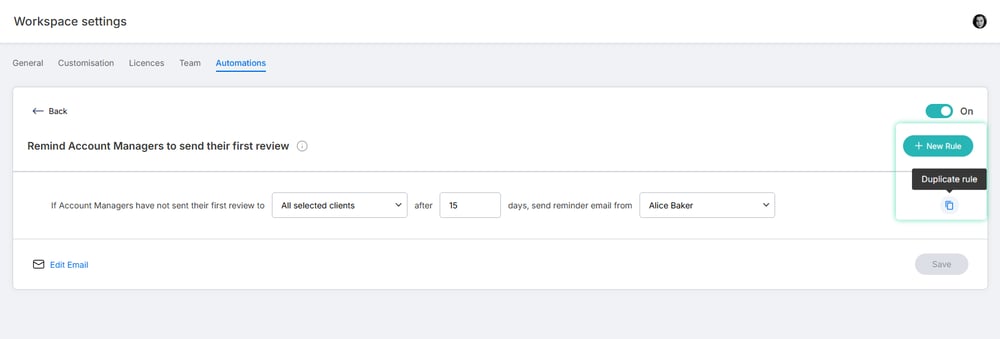
Step 2: Configure the automation rule
- Select the clients the rule applies to
- Define the number of days since the last review to trigger the automation
- Choose the sender (typically a senior manager)
- (Optional) Click Edit email to update the messaging
- Click Save to activate the rule
.png?width=1000&height=341&name=How%20to%20set%20up%20automated%20review%20reminders%20for%20account%20managers%20SCREENSHOT%207%20(1).png)
Tip:
You can create multiple rules/ copy existing rules using + New Rule/ “copy” icon for different clients, timeframes, or senders. However, email messaging cannot be customised per each rule - it will remain the same across all rules within this automation.
Read more:

How to use Pulse Share-to-Many