
This article explains how to manage your personal user settings within Clientshare, including:
- Profile details
- Account security
- Email notification preferences
- Client account access and logo customisation
- Language preferences
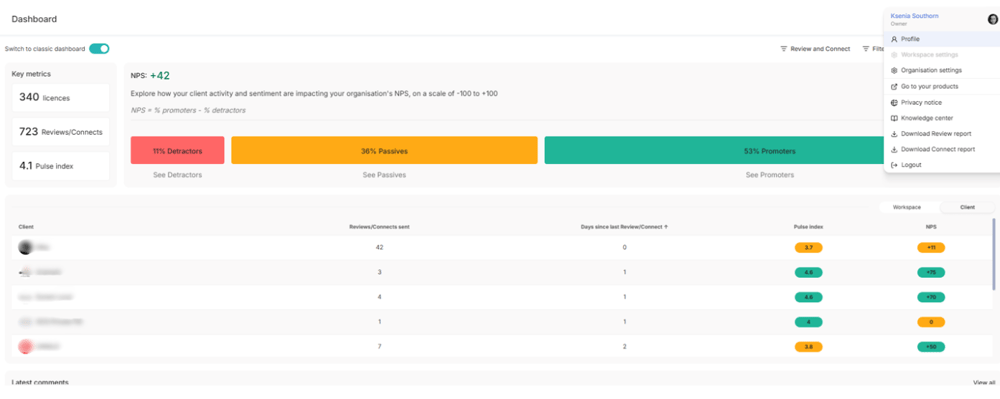
- Select your profile icon (or initials) in the top-right corner of the platform.
- Choose Profile from the menu.
Accessing User Settings
To access your user settings:
From here you can navigate between the Details, Security, and Notifications tabs.
1. Profile Details
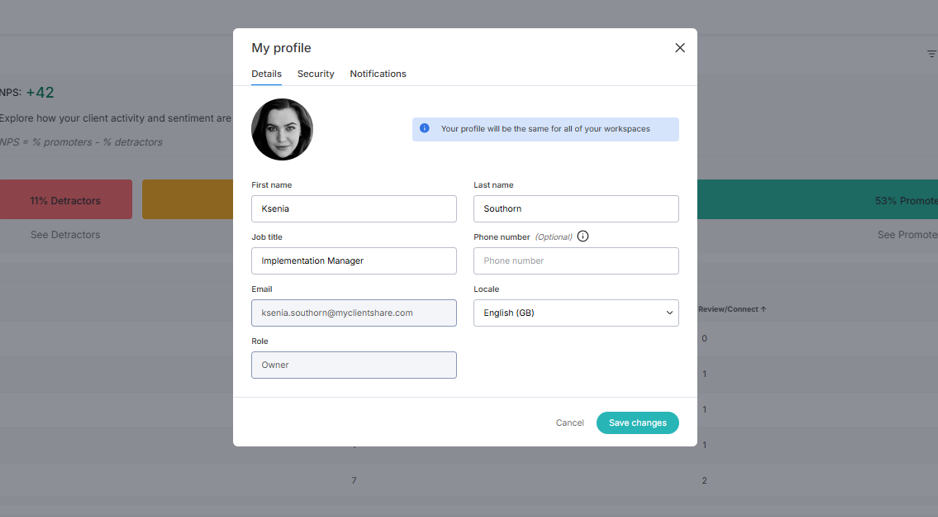
Keep your profile information up to date to ensure your contact details and signature information are accurate when sharing reviews.
In the Details tab, you can update:
- First name
- Last name
- Job title
- Phone number (optional)
- Profile picture (optional)
Click Save Changes once you've finished updating your information.
Useful to know:
- Your email address cannot be changed from your profile. If your email address changes, please contact support@myclientshare.com or ask your administrator to invite your new email address.
- Your user role is managed by Admin/ Owner level users and cannot be changed from your profile. Your user role is not visible on reviews. Only your name, job title, email address and phone number (if provided) appear in your review signature.
- Change your password
- Enable two-step verification (2FA)
- Delete your account
2. Account Security
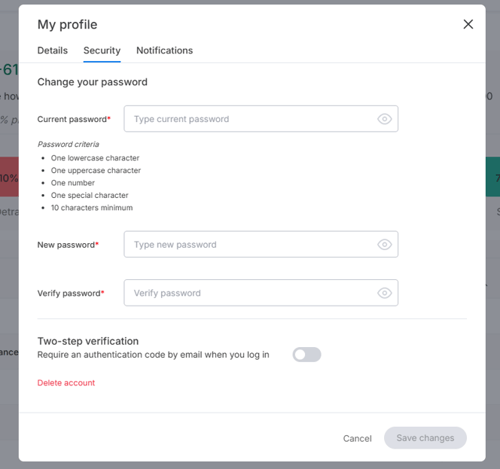
The Security tab allows you to manage your account security settings.
You can:
- Change your password
- Enable two-step verification (2FA)
- Delete your account
Change your password
To change your password:
- Enter your current password.
- Enter and confirm your new password.
- Ensure your new password meets the required security criteria.
- Click Save Changes.
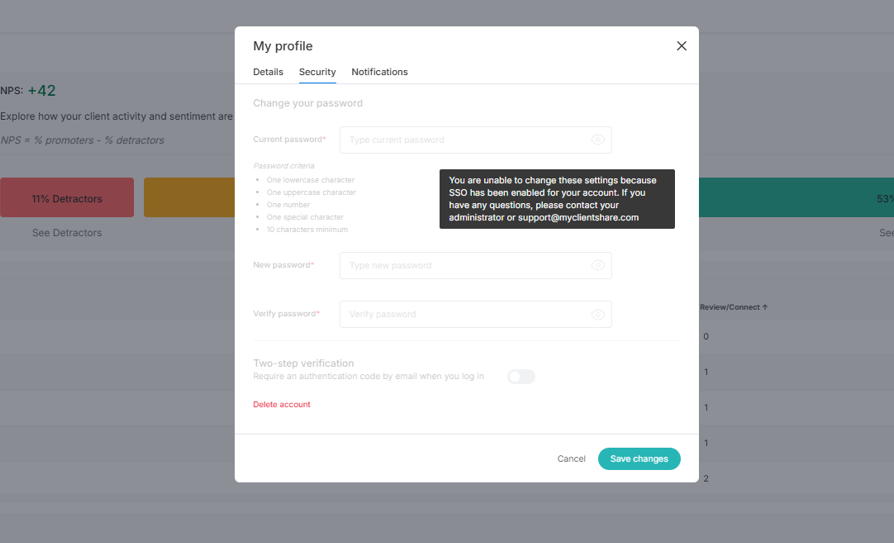
Please note: If your organisation uses Single Sign-On (SSO), password management will be unavailable.
Enable two-step verification
To add an extra layer of security:
- Turn on the Two-step verification toggle.
- Each time you sign in, you'll be asked to enter a verification code sent to your email address.
- Select Delete Account.
- Confirm your decision.
Please note: If your organisation uses Single Sign-On (SSO), Two-step verification will be unavailable.
Delete your account
To permanently remove your account:
Once deleted, your access to Clientshare will be removed.
If your account was deleted by mistake, please contact support@myclientshare.com.
3. Notification Preferences
Notification preferences allow you to control which email notifications you receive for the accounts you manage.
Open the Notifications tab to customise your preferences.
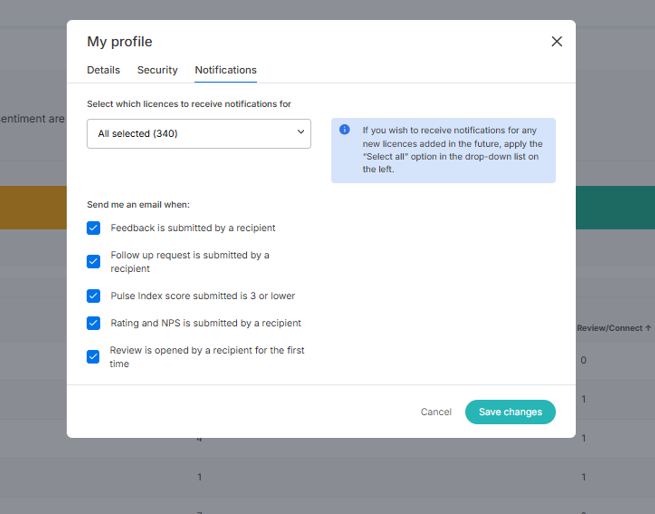
There are two steps:
- Select the accounts the settings should apply to.
- Choose which notification types you'd like to receive.
Choose which accounts to apply notifications to
Use the account selector at the top of the page to choose whether notifications apply to:
- All accounts
- Selected accounts only
- Notifications apply to every account you currently manage.
- Any accounts assigned to you in the future will automatically use the same notification settings.
- Notifications only apply to the accounts you manually select.
- Newly assigned accounts will not automatically inherit these settings.
- Feedback comments are submitted
- A follow-up request is submitted
- A Pulse Index score of 3 or below is received
- Ratings and NPS scores are submitted
- A review is opened for the first time
- Enable all five notification types to stay informed about engagement across your accounts.
- Feedback comments
- Follow-up requests
- Low Pulse Index scores
Using "Select All"
When Select All is enabled:
When Select All is not enabled:
Useful to know: If you are assigned to accounts as an Account Manager (regardless of your user role), your notification preferences will automatically be applied to any new accounts assigned to you, even when Select All is not selected.
Available notification types
You can choose to receive notifications when:
Click Save Changes once you've updated your preferences.
Best practice
Every user manages their own notification preferences independently.
We recommend:
Account Managers
Senior and Leadership Teams
Enable notifications for:
across all accounts within your portfolio.
4. Client Account Access and Logo Customisation
View your assigned accounts
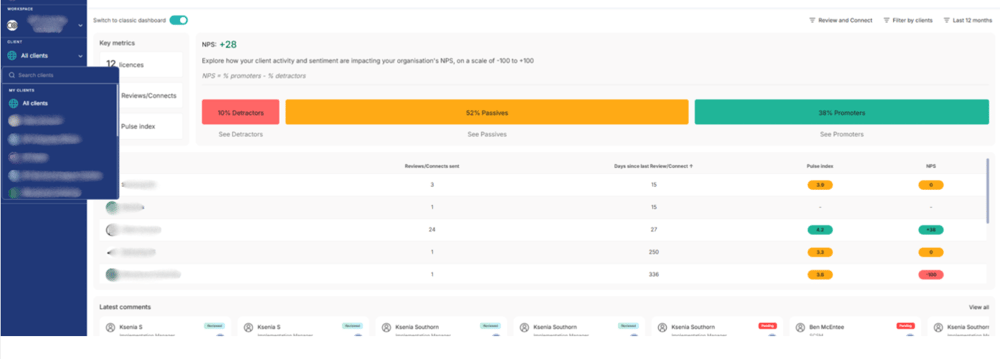
When you sign in, your dashboard displays the number of client accounts you have access to.
You can also view all assigned accounts by selecting All Clients from the left-hand navigation.
Update an account logo
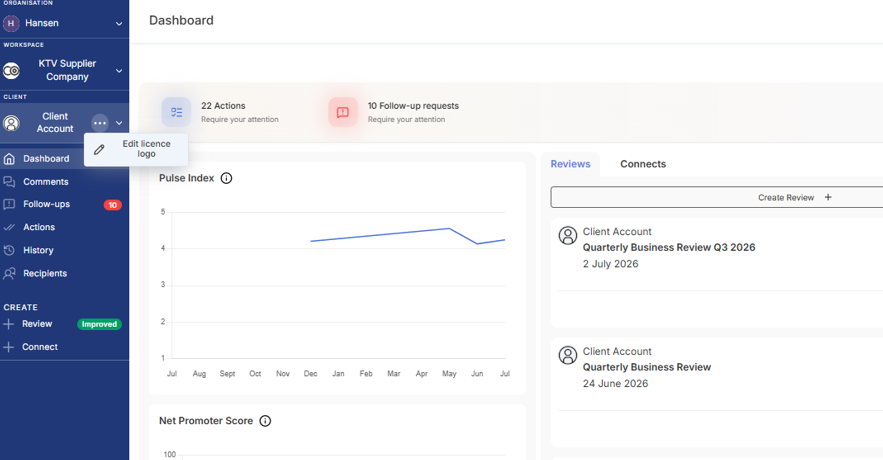
Account Manager and Senior Manager level users can customise the logo displayed for a client account.
To update a logo:
- Open All Clients from the left hand side.
- Select the relevant client account.
- Click the three dots next to the account name.
- Upload a logo image from your device.
5. Language Preferences
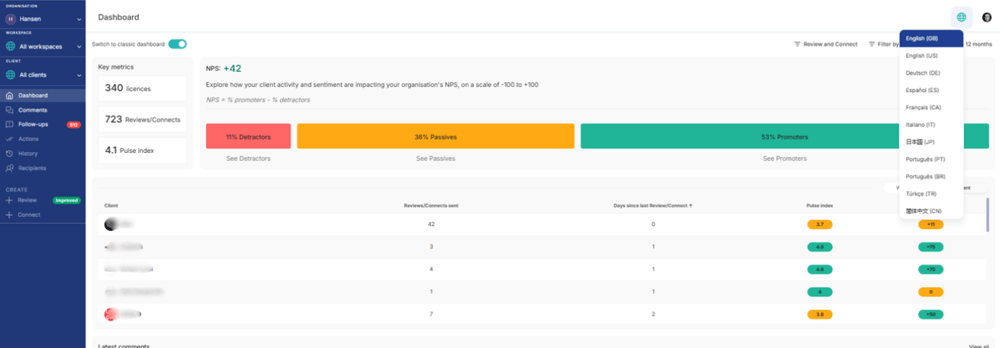
Clientshare is available in:
- English (UK)
- English (US)
- German
- Spanish
- French
- Italian
- Japanese
- Portuguese (European)
- Portuguese (Brazilian)
- Turkish
- Simplified Chinese
- Select the globe icon in the top-right corner.
- Choose your preferred language.
To change your dashboard language:
The dashboard will immediately update to the selected language.
Important
Changing your dashboard language does not change the language used within reviews.
Review language is controlled separately by your Clientshare administrator through the review language settings.
Read more:
.png?width=300&height=225&name=support-article-thumbnail%20(10).png)
.png?width=300&height=225&name=support-article-thumbnail%20(23).png)