
This article will cover everything on our Custom Email Domains feature.
Currently, all emails that are generated from Clientshare are sent from info@myclientshare.com
If the email has been triggered by a user’s action on Clientshare, then their name will be included within the sender address. However, the email will always remain the same.
With Custom Email Domains enabled:
-
Emails generated by a user’s action on Clientshare will be sent from that user’s email address. For example, if john.doe@company.com were to send a review to a client recipient, the email would be sent from their email address instead of info@myclientshare.com.
There are a number of benefits to having Custom Email Domains enabled. They are:
Whitelisting requirements reduced – customers with firewalls / secure email configuration settings don’t need to whitelist Clientshare’s email domain.
CX customisation increased – All emails from Clientshare will be sent from your organisation’s email domain.
Customer engagement increased – An increased delivery rate is likely to increase review open rates & feedback from customers.
How can I enable Custom Email Domains?
Firstly, you will need to reach out to our Customer Success Team, who will be able to support in getting the right information in order to set up this feature.
You will need someone within your organisation who has admin access to your domain settings. Below is an example of what the permissions will look like that need to be updated within your DNS settings.
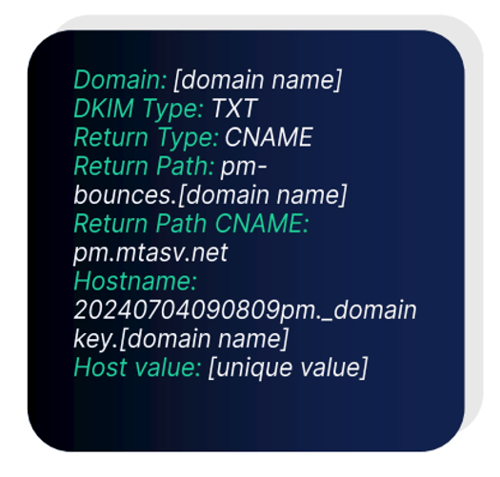
If your organisation has multiple email domains that are used across Clientshare, you will need to make sure that permissions are added for each email domain. Please ensure this is clarified with our Customer Success Team before the setup process takes place.
Please note that if a user does not have an approved domain through Custom Email Domains but tries to send notifications out from Clientshare on your organisation’s behalf, it will be sent from info@myclientshare.com.
Read more:
.png?width=300&height=225&name=support-article-thumbnail%20(15).png)
.png?width=300&height=225&name=support-article-thumbnail%20(12).png)